|
HOW TO
START
1.
First of all, get
Pogoshell 1.2 from the DOWNLOAD SECTION or from Herg's Site (the author of Pogoshell
1.2)
2.
Unpack the .zip into your
favourite directory, that's what you will find
inside:
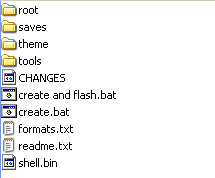
the first thing I suggest you to do is to copy/paste
the root directory as a backup. Since most of the customizations
are done to that DIR it may be useful to have a fresh root to start all
over in case you did something wrong.
3. Open the root directory
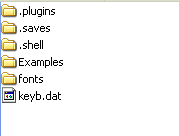
this is what you will see on you GBA screen , in this
directory you can create new folders , as many as you like, to sort Nes
roms, sound files, images, games.
WHAT ARE THOSE
DIRECTORIES?
.plugins : this directory obviously contain plugins ,
you can remove those you don't need.
.saves : to import
savefiles put the .sav files here (this is explained better in
the Manage
Saves
section)
.shell : don't touch this directory! it contains
files nedded to run pogoshell.
Examples : this dir contains some
examples of Pogoshell capabilities, but it has no real use... so you can
delete it for more space on the card.
fonts : as the name says
this directory contains fonts you can use in Pogoshell, if you need space
you can delete it, since the fixed font is in .shell folder too.
file
keyb.dat : you can delete this file as well, it's only used in old
text adventures with the Frotz Plugin (read more here)
4.
Start customizating your
Pogoshell!
Put GBA roms in the root folder or create a
directory called GBA GAMES and put them in there... it's the
same.
Roms must be in .gba or .bin format. ZIP FILES
WON'T WORK. To save some space read the Tools
section, expecially the romtrunc paragraph.
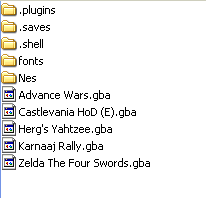
This is how you
directory will look like before flashing on the cart:
5.
Flashing
Once you
are happy of the files you put into the root go back one step in
the Pogoshell 1.2 folder and double click the file CREATE.BAT
, this batch will "pack" all the root folder into one single
file called ROM.BIN . This is the file that will be flashed on
your cart.
Now you can use your favourite program to flash your cart,
for example Little Writer, or Flash 2 Advance writer, simply select the
rom.bin file , and it's done!
|